

Setup
To use our theme in your Shopware 6 shop, you must first purchase it from the Shopware Store. The theme can be used for both cloud and self-hosted shops and offers the same range of functions for both.
Connect Shopware Account
After you have successfully purchased the theme from the Shopware Store, you can navigate to the administration section of your Shopware 6 shop.
Next, go to “Extensions > My Extensions” and click on the “Shopware Account” tab. Here, you first connect your Shopware account to the shop.
Installation
In the next step, click on the “Themes” tab. There you should be able to see the theme as follows:
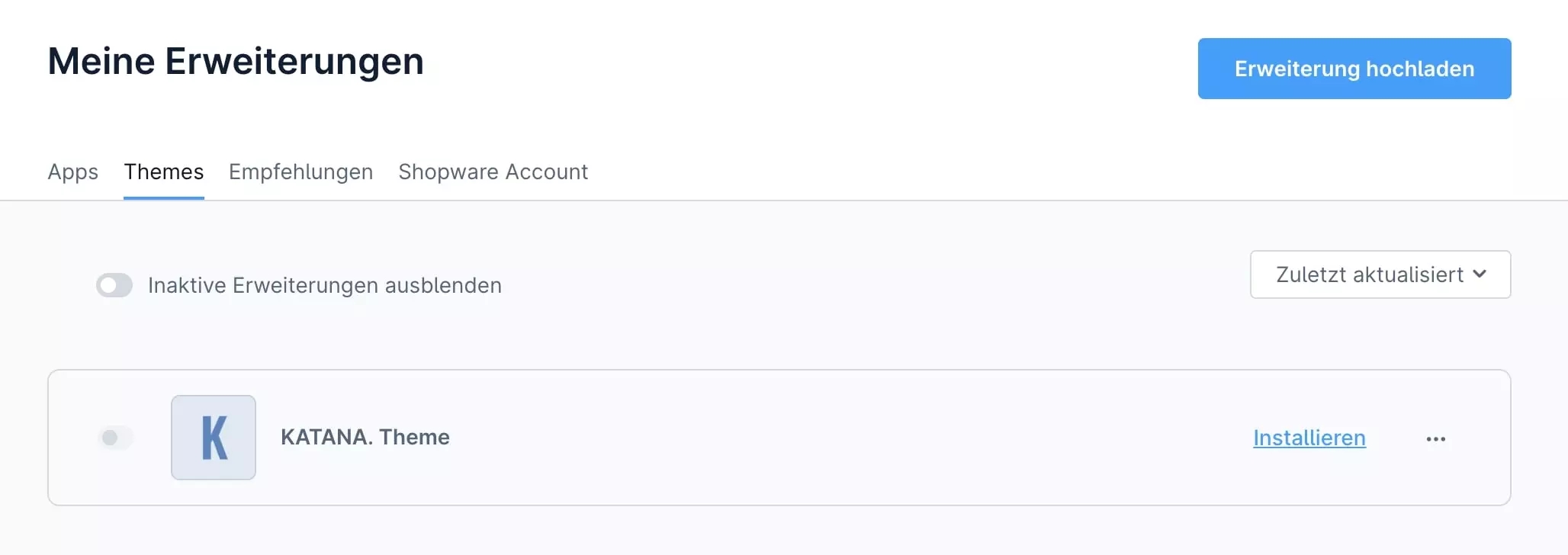
Click on “Install” to install the theme. Then activate the theme using the switch button next to the icon on the left-hand side.
Assign theme
In order to use the theme, you always need a “Storefront” sales channel. This comes automatically with every Shopware 6 installation and can be found in the left menu bar of your administration area. The small shop icon to the left of the sales channel indicates this.
Now click on your sales channel and then on “Theme” at the top of the page. You can now switch to the theme you just installed by clicking on the “Change theme” button. Confirm the change by clicking on “Apply theme.” Finally, click on “Save” at the top right of the screen.
Last updated
Was this helpful?